

Account
Settings
Your profile, display options, document customization, the API token and signing out.
2 min read
The Settings page gathers your profile and your preferences. It saves by itself: there is no button to confirm.
Open the settings
In the menu on the left, click Settings. You can also click your name at the very bottom of the menu.
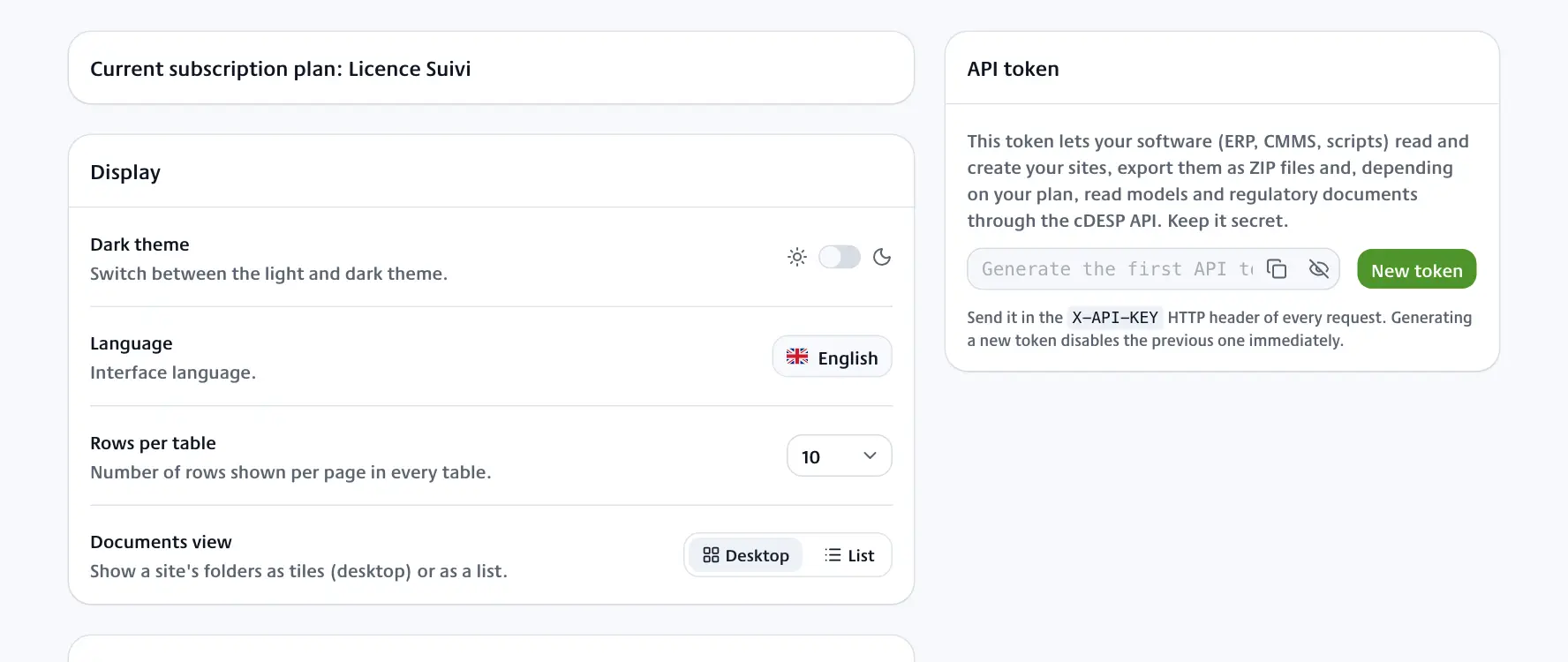
At the top of the page, the Current subscription plan: card shows the name of your plan.
Display
The Display card sets how cDESP looks:
- Dark theme: switches between the light and the dark theme. This choice applies to the browser you are using.
- Language: the language of the interface.
- Rows per table: the number of rows shown per page in every table (10, 20, 50 or 100).
- Documents view: a site's folders in Desktop mode (thumbnails) or List mode.
Personal information
Every change is saved automatically, a moment after you stop typing or as soon as you leave the field. A message confirms the save.
The fields are Full name, Phone number, Email address, Agency, Company, Role and Description.
- Full name, Phone number, Email address, Company and Role are required. While one of them is missing, a red box names it and the other pages bring you back here.
- Email address cannot be changed here, because it is your sign-in. To change it, contact the DCRR team.
Customize your documents
With an Enterprise plan, four more cards apply to the documents you generate in cDESP:
- Document visual identity: choose the Primary color and the Secondary color of banners, headings and tables. A preview shows the result. cDESP colors restores the original colors.
- Your company logo: your company's logo.
- Your signature: click Add my signature and choose a PNG, JPG or WEBP image of up to 5 MB. It is offered automatically on your new documents: initial visits, inspection plans, periodic inspections, applicability audits and ESP follow-up reports. Existing documents are never changed.
- Your authorization for regulatory controls: this document is attached as an appendix to the regulatory inspections you issue.
API token
The API token lets your software (ERP, CMMS, scripts) exchange data with cDESP. See REST API.
- In the API token card, click New token.
- Click the copy icon (Copy token).
- Paste the token into your software. It must be sent in the
X-API-KEYHTTP header of every request.
The eye icon shows or hides the token.
Regulatory reminder emails
Due date reminder emails are on by default. They are not set on this page: to stop or restore them, ask the DCRR team. See Deadlines and reminders.
Mobile app notifications are set in the app itself. See Mobile app.
Sign out
Sign out is at the bottom of the menu on the left, next to your name.
- Click the Sign out icon, to the right of your name.
- In the Sign out? window, click Sign out.
You are taken back to the sign-in page.