

Documents
Site document folder
File, find, rename and export a site's documents, sorted like the regulatory file.
3 min read
Each site has its own document explorer, organised like a paper regulatory file: a manufacturing part, an operating part and a few extra folders. It is the site's main page. You drop your documents there, you find the reports produced in cDESP and you export the complete file in one click.
Open a site's documents
- In the left menu, click My sites.
- Click the site name, in green with a folder icon.
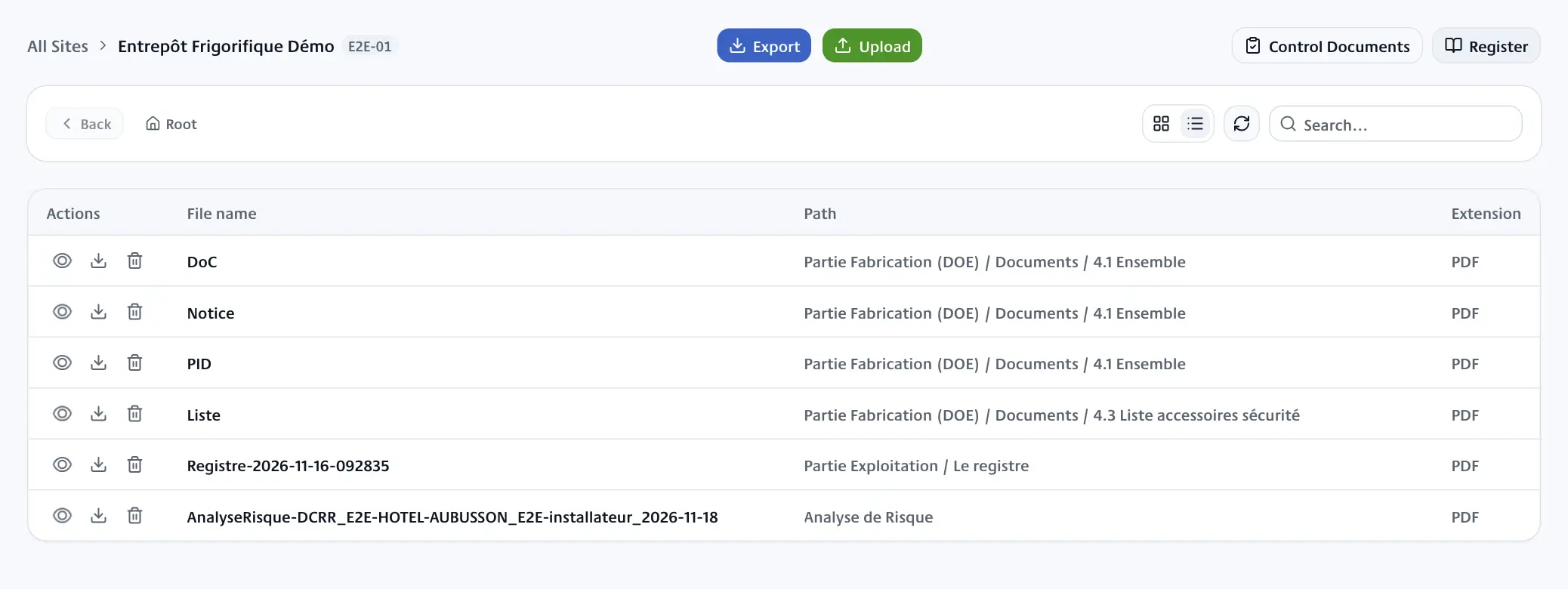
At the top, the breadcrumb shows My sites, then the site name followed by its code.
The folders
Every folder is shown, even when empty, so that each document has its place. Folder names stay in French in every language, as they follow the French regulatory file:
- 1- Partie Fabrication (DOE): the as-built file (drawings, documents of the assemblies and of the installation, list of safety accessories, piping, test reports, welding qualifications, photos);
- 2- Partie Exploitation: list of the pressure equipment concerned, commissioning declaration (DMS), inspection plan, reports of initial visits, periodic inspections and additional examinations, authorisation certificate, requalification certificates, pressure switch setting certificates, register, intervention file;
- 3- ICPE, 4- Livret CVC - PAC70, 5- Analyse de Risque and 6- BACS.
One click on a folder opens it. To go back up, click Back or a name in the path shown next to it (Root to return to the start).
Some documents file themselves:
- reports made in the technical area (initial visit, inspection plan and its approval request, periodic inspection, audit) go into their folder in 2- Partie Exploitation. A signed copy has the prefix
SIGNED -; - photos of systems and components go into 1- Partie Fabrication (DOE) > 10- Photos;
- the register PDF goes into 2- Partie Exploitation > 10- Le registre.
Change the view and search
- Desktop view: tiles, folder by folder.
- List view: a table of all the files below the open folder, with their path. Clicking a path opens the folder.
- The Search... field filters the open folder by name.
- Refresh reloads the list of files.
Add documents
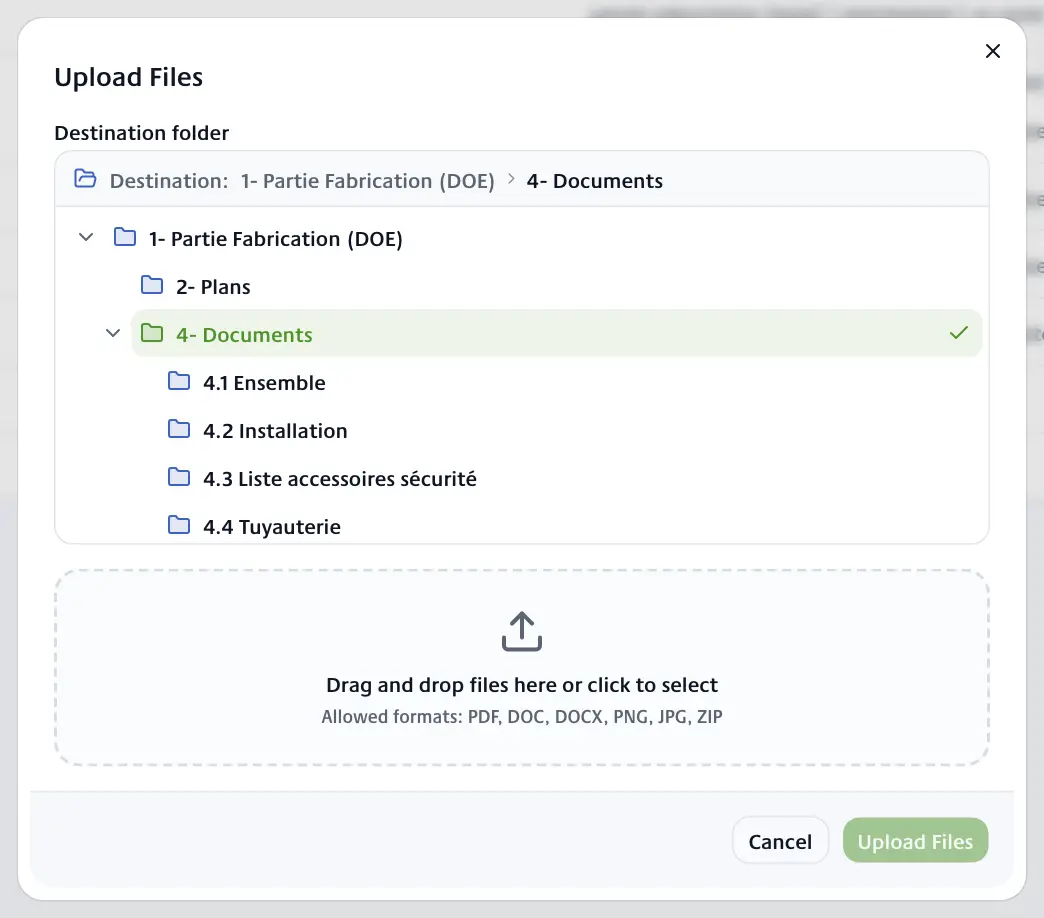
- Open the destination folder (you can also choose it in the window).
- Click Upload.
- Check the Destination folder.
- Drag your files into the area, or click it to choose them. Accepted formats: PDF, DOC, DOCX, PNG, JPG and ZIP.
- Click Upload Files.
Each document keeps the name of its file. If a document with the same name already exists in the folder, cDESP adds a number to the new one.
You can also drag files from your computer straight onto a folder: the window opens with that folder as the destination.
Open, rename, move or delete
- Open: double-click a file, or click Preview. It opens in a new tab.
- Download and Delete: hover over the tile, click the … button at the top right, then choose the action.
- Rename: double-click the name of a document you uploaded, type the new name, then press Enter. Escape cancels.
- Move: drag a document you uploaded onto another folder.
Control reports and equipment photos cannot be renamed or moved: they follow their record in cDESP.
Export the folder
- Click Export.
- Choose:
- Export as ZIP: a ZIP file named after the site, with exactly the documents the page shows, in the same folders. Only folders that contain at least one file are included. cDESP adds the site's list of pressure equipment (
liste_esp.pdf) and the list of safety accessories; - Export as PDF: the site's 6-III list, that is the list of its pressure equipment.
- Export as ZIP: a ZIP file named after the site, with exactly the documents the page shows, in the same folders. Only folders that contain at least one file are included. cDESP adds the site's list of pressure equipment (
The export can take a moment for a large folder: keep the page open until the download starts.
Who can do what
Every account with access to the site can open, download and export the documents. Depending on your subscription, the Upload button, renaming, moving and deleting may be missing, as may the Control Documents button, which opens the technical area.
The Register button opens the site register.