

Sites and equipment
Systems and equipment
Add a site's systems and their equipment, by hand or from a photo of the nameplate, and ask DCRR for help.
4 min read
A piece of pressure equipment (PE, "ESP" in French) is a device that holds a fluid under pressure: a receiver, a vessel, a heat exchanger, piping, a relief valve. Several pieces of PE fitted together form a system (also called an assembly, "ensemble" in French), for example a refrigeration rack or a condensing unit. In cDESP, a site contains systems, and each system contains its components.
View a site's systems
- In the left menu, click My sites.
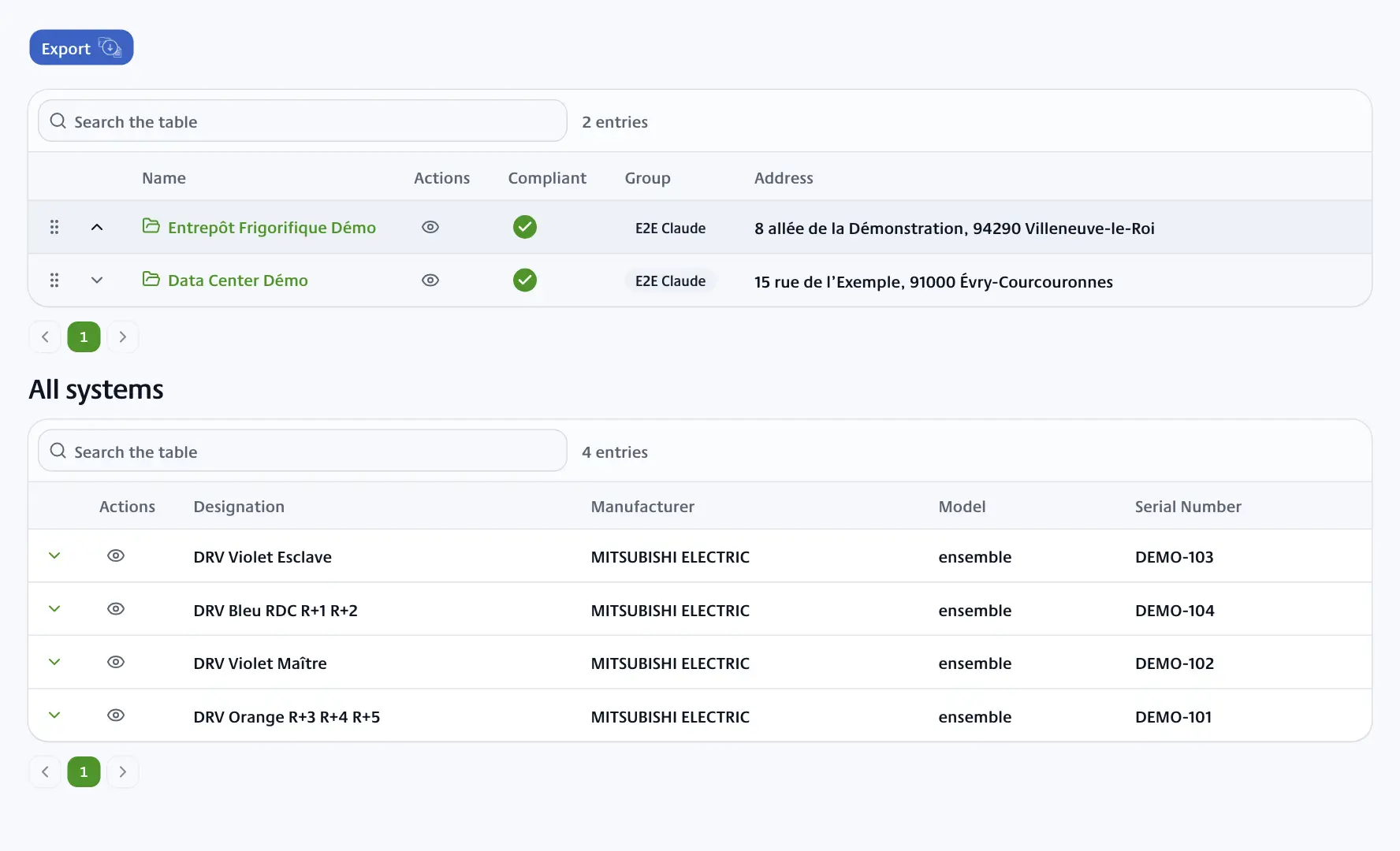
- Click the arrow at the start of the site's row. The All systems list opens below the table, with the columns Designation, Manufacturer, Model and Serial Number.
- Click the arrow at the start of a system's row. The Components of the selected system list opens below, with the columns Type, Model, Manufacturer and Serial Number.
The View icon (eye) shows all the information of a system or component: photos, fluid, pressures, dates.
Add a system
- In All systems, click Add a system.
- At the top of the window, add photos of the system and its nameplate if you wish.
- Enter the Designation, the name that lets you recognise the system.
- In Type, choose Set for a machine delivered assembled by a manufacturer, or Installation for a system assembled on site.
- For a set, choose a catalogue model in Prefill model, or type it in Model.
- In Refrigerant fluid, choose the fluid. The Fluid group and Toxicity fill in by themselves.
- Fill in what you know: manufacturer, serial number, year, VI date (initial visit), MES Date (commissioning), Last IP (periodic inspection) and Last RQ (periodic requalification).
- Check the Surveillance regime, for example the CTP (French professional technical guide) for pressurised refrigeration systems.
- Click Add.
cDESP calculates Next IP and Next RQ from the dates entered and the system's periodicities. You can correct these dates by hand. See Deadlines and reminders.
Add a component
- Open the system with the arrow of its row.
- In Components of the selected system, click Add a model.
- In Type, choose Safety accessories, Equipment, Piping or Container.
- Choose a catalogue model in Prefill model: the manufacturer, the reference and the known characteristics fill in. Otherwise, type it in Model / Designation.
- Fill in the serial number, the year and the pressures. The chapter, the risk category and the DMS (commissioning declaration) are suggested automatically: check them.
- Tick Exclude from inspections if this component must not appear in inspection plans, initial visits, periodic inspections and approval requests.
- Click Create.
The model catalogue is explained in Models and CE declarations.
Read a nameplate with OCR
OCR (text recognition) reads the photo of a nameplate and creates the record for you.
- For a system, click OCR in All systems. For a component, click OCR in Components of the selected system.
- Choose a sharp photo of the nameplate, taken straight on.
- Wait for the reading to finish. The message "Your model has been successfully created." appears and the new row shows up, with the photo attached.
- Open the row with Edit and check every value.
Edit, duplicate or delete
On a computer, the Actions column offers:
- Edit (pencil): reopens the full form.
- Duplicate: copies a system with all its components, handy for two identical machines. Remember to change the serial numbers.
- Delete (bin): deletes the row after confirmation.
The handle on the left of a row lets you reorder by drag and drop when the search is empty. On a component's row, View on La GFF opens a search for its reference in the catalogue of the distributor La GFF.
Ask DCRR for help
If a model is missing or you have a doubt about a piece of equipment:
- Click the button that starts with Request for in All systems (about a system) or in Components of the selected system (about a component).
- Enter a Title and a Message: manufacturer, reference, serial number, what you are looking for.
- Click Send.
The message "Your request has been successfully sent." confirms it was sent. See Contact DCRR.