

Planning
Inspection body appointments
Schedule a VI, IP or RQ with an inspection body, notify everyone by email, then update the dates.
3 min read
On the Planning page, you set your appointments with the authorized inspection bodies. cDESP sends the confirmation, a reminder the day before, then updates the dates of the systems once the visit is done.
Words to know
- OH: authorized inspection body (organisme habilité), the body that carries out some regulatory checks.
- VI: initial inspection (visite initiale).
- IP: periodic inspection (inspection périodique).
- RQ: periodic requalification (requalification périodique).
- System (or set): a group of pressure equipment followed together on a site.
Seeing your appointments
- In the left menu, click Planning.
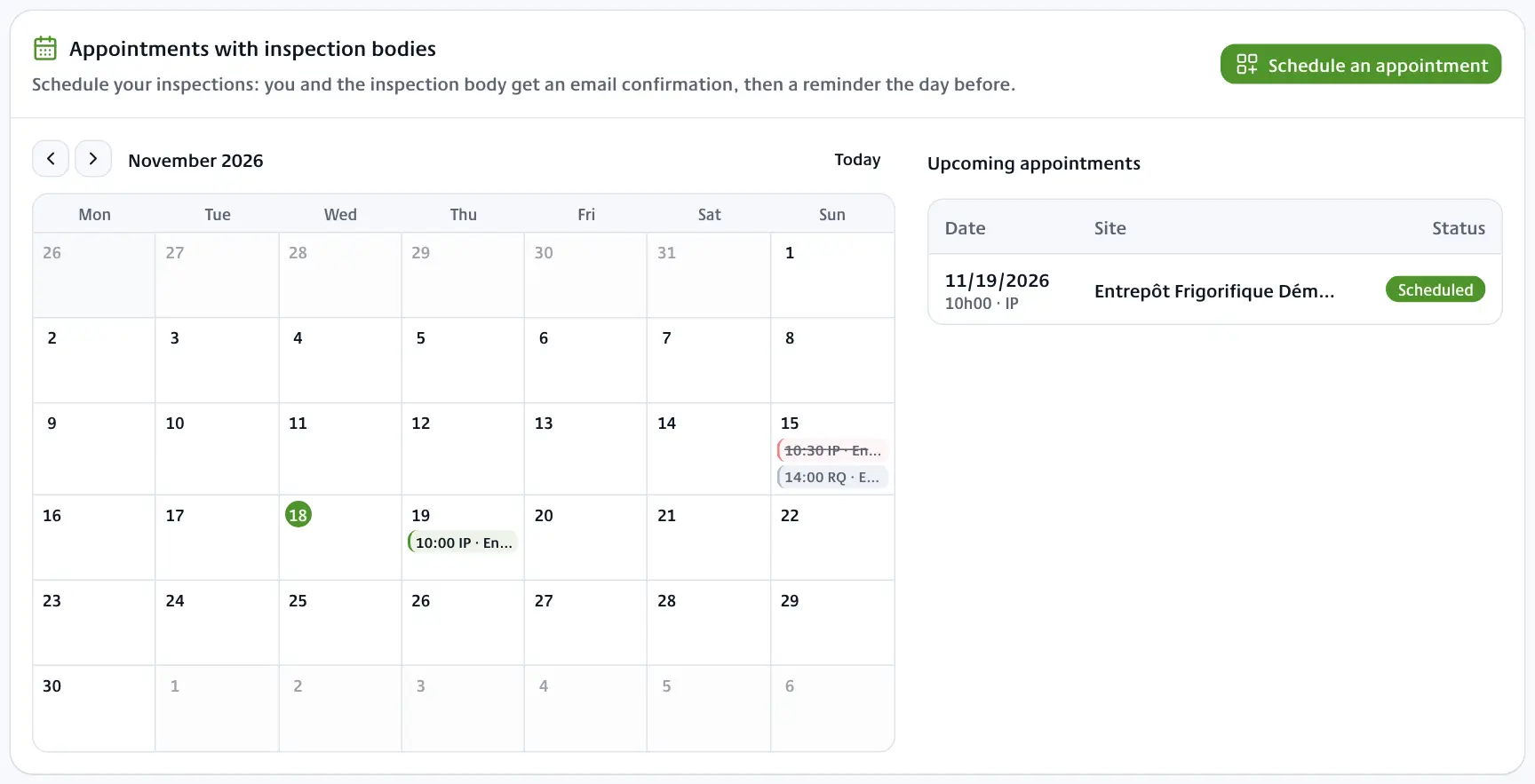
- At the top of the page, the Appointments with inspection bodies block shows the month calendar and the Upcoming appointments list.
Use the arrows to change month and Today to come back to the current month. Click a day to see its appointments, then Show upcoming to go back to the full list.
Each appointment has a status: Scheduled, Done or Cancelled. You see the appointments of every site in your groups.
Scheduling an appointment
- Click Schedule an appointment. On a computer, you can also hover over a day in the calendar and click the +.
- In Site, type the site name or code, then pick it.
- In Inspection, choose Initial inspection, Periodic inspection or Periodic requalification.
- In Systems concerned, tick the systems to be visited (or click Select all).
- In Inspection body, choose the authorized inspection body.
- If you know it, enter the Inspector email (optional).
- Choose the Date and Time (Paris time).
- To copy your customer, fill in Customer emails (optional). Separate several addresses with a comma.
- If needed, add a Note (optional): access, on-site contact, instructions.
- Click Schedule.
The message "Appointment scheduled, confirmation email sent." confirms the email went out. If you read "Appointment scheduled, but the email could not be sent.", the appointment is saved: let the inspection body know yourself. A date in the past is refused.
The inspection body is not in the list
- Under Inspection body, click Inspection body not listed? Ask us to add it.
- Enter the Inspection body name (required).
- If you can, add its Email, Phone and Address.
- Click Send the request.
The DCRR team receives an "Ajout organisme" request and adds the body to the list. You can then choose it.
Who gets the emails
| When | Recipients | |
|---|---|---|
| Confirmation | as soon as you click Schedule | you, the inspection body and the inspector; customer emails in copy |
| Reminder | the day before the appointment, from 9 am (Paris time) | the same people |
| Cancellation | when you cancel the appointment | the same people |
The emails are written in French. They give the site and its address, the systems concerned, the inspection body, your contact details and your note. A reply to the email comes straight to you. An appointment booked the day before or the same day gets no reminder: the confirmation has just gone out.
After the visit: marking the appointment as done
- Click the appointment in the calendar or in the list.
- Once the appointment time has passed, click Mark as done.
What cDESP updates:
- Periodic inspection: for each ticked system, the last IP takes the appointment date and the next IP is worked out again.
- Periodic requalification: the last RQ takes the appointment date, and the next RQ and next IP are worked out again.
- Initial inspection: no date is changed.
A line is also added to the site register. How the dates are worked out is explained in Deadlines and reminders.
Cancelling an appointment
- Click the appointment.
- Click Cancel the appointment.
- Click a second time to confirm.
A cancellation email goes to the people who received the confirmation.