

Getting started
Free tool VerifDESP
Check whether a vessel is subject to in-service monitoring, without an account.
2 min read
The VerifDESP calculator of the cDESP website is open to everyone, with no account and no sign-in: it tells you whether a refrigeration vessel is subject to in-service monitoring of pressure equipment (ESP). You find it at the bottom of every page of the cDESP website, and on the home page in the A calculator, open to all block.
Before you start
- Keep the equipment's rating plate at hand: it gives the maximum allowable pressure (PS), the volume and the fluid.
- The results are indicative. They replace neither the study of a complete file nor the opinion of the notified body (OH), the body that carries out the regulatory inspections.
Check equipment with VerifDESP
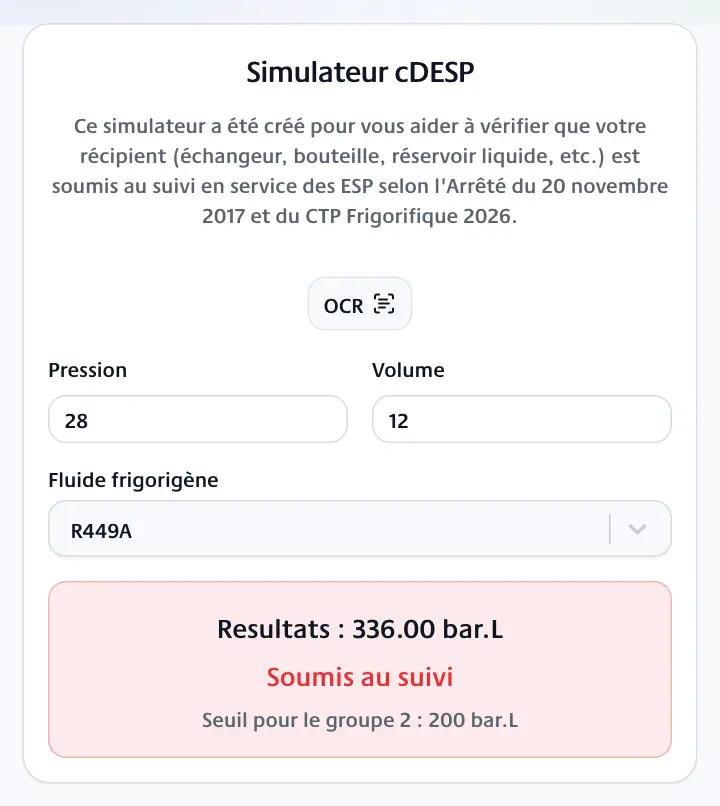
VerifDESP multiplies the pressure by the volume (in bar.L) and compares the result with the threshold of the chosen fluid's group.
- Open VerifDESP.
- In Pressure, enter the maximum allowable pressure of the equipment, in bar.
- In Volume, enter its volume, in litres.
- In Refrigerant fluid, type the name of the fluid (for example R449A), then choose it in the list.
The result shows as soon as the three fields are filled in, with no button to click:
- the Results line gives the pressure x volume product in bar.L;
- Subject to monitoring (in red) or Not subject to monitoring (in green);
- the last line recalls the threshold of the fluid group used for the comparison.
Read the plate from a photo
Above the fields, the OCR button reads a photo of the rating plate and fills in the values it finds.
- Wait for the anti-bot check to finish: while the message "Anti-bot verification in progress…" is shown, the button stays greyed out.
- Click OCR.
- Choose a sharp photo of the plate (JPEG, PNG, WebP or GIF, 8 MB at most).
The message "The data has been extracted from the plate!" confirms the reading. Check each value against the plate, then choose the fluid if needed.
Going further with cDESP
To follow your equipment over time (inspection dates, documents, reminders), create an account: see Account and sign-in, then First site.